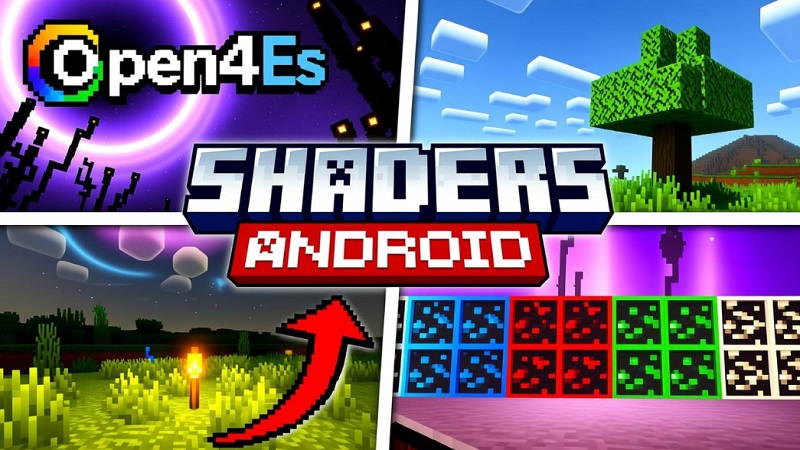
Open4Es Shader Dynamic Shadows for Mobile Minecraft
Open4Es Shader is a mobile-focused shader created to bring dynamic shadows and realistic lighting to Minecraft on phones and tablets. Instead of relying on heavy visual effects that often overwhelm mobile devices, it improves what matters most: light, depth, and atmosphere. Whether you enjoy building, survival gameplay, or creating videos, Open4Es Shader helps transform ordinary Minecraft worlds into more immersive and visually engaging experiences on MCPE.
Why Open4Es Shader Looks Great on Mobile
Open4Es Shader stands out because it is designed specifically for mobile Minecraft gameplay. Many shaders aim for extreme visuals, but those approaches often reduce performance on phones. Open4Es takes a smarter path by focusing on lighting behavior, shadow placement, and visual clarity.
On mobile screens, readability is essential. Open4Es Shader enhances contrast and depth without cluttering the view. Blocks are easier to distinguish, terrain feels more three-dimensional, and environments gain a natural sense of scale. Forests feel denser, builds feel more grounded, and landscapes no longer look flat.
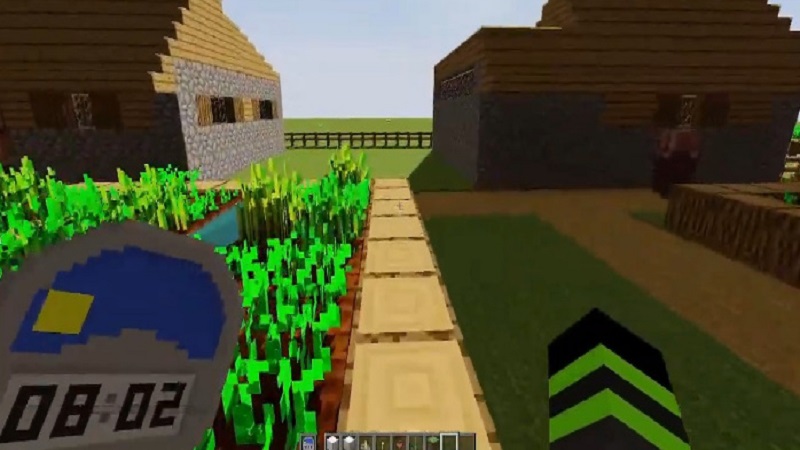
Another reason the shader performs well is balance. It avoids overly strong bloom or aggressive color filters. This keeps visuals comfortable during long play sessions while still looking impressive in screenshots and recordings. You can explore, build, or record content without feeling distracted by the shader itself.
Dynamic Shadows for Visual Storytelling
Dynamic shadows are the defining feature of Open4Es Shader and the main reason many players choose it.
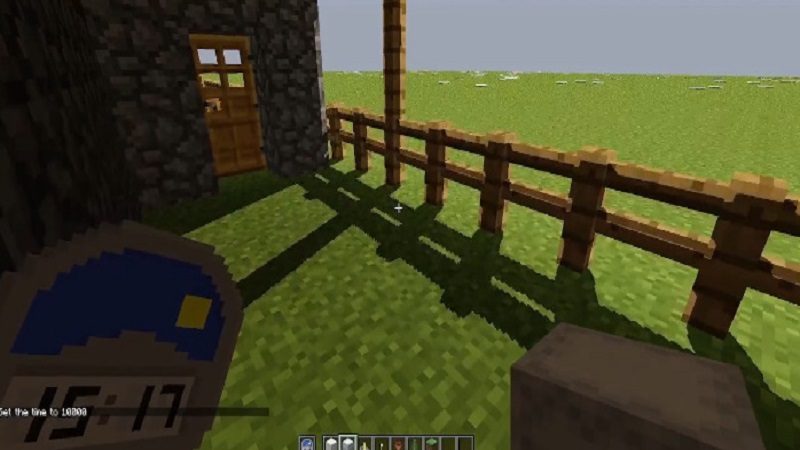
Unlike standard MCPE lighting, Open4Es introduces real-time shadows that react to the sun and surrounding terrain. As the day progresses, shadows move naturally across the world. Buildings cast proper shade, trees create layered shadows, and hills gain depth that makes the environment feel larger and more alive.
For creators, this turns lighting into a storytelling tool. A base at sunrise feels calm and welcoming. A forest at dusk feels dense and mysterious. Cave entrances appear darker and more dramatic, even before stepping inside. These lighting changes help set mood and atmosphere without altering gameplay mechanics.
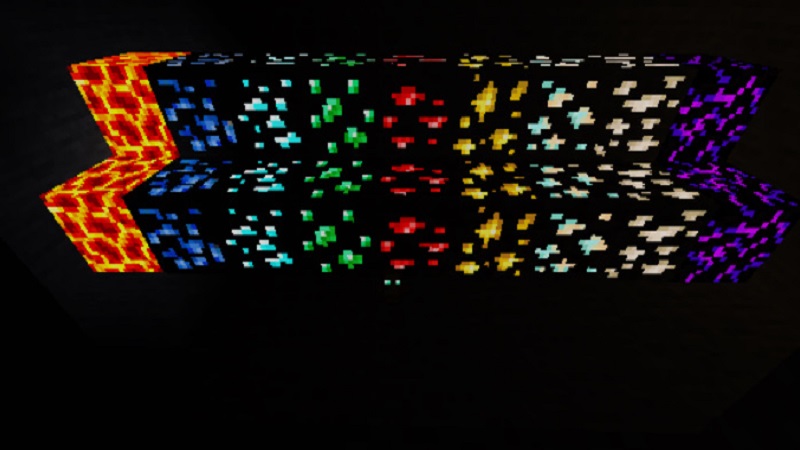
Dynamic shadows also improve visual clarity on mobile screens. Elevation changes, paths, and structures are easier to read, which makes screenshots cleaner and gameplay footage easier to follow—especially for viewers watching on their phones.
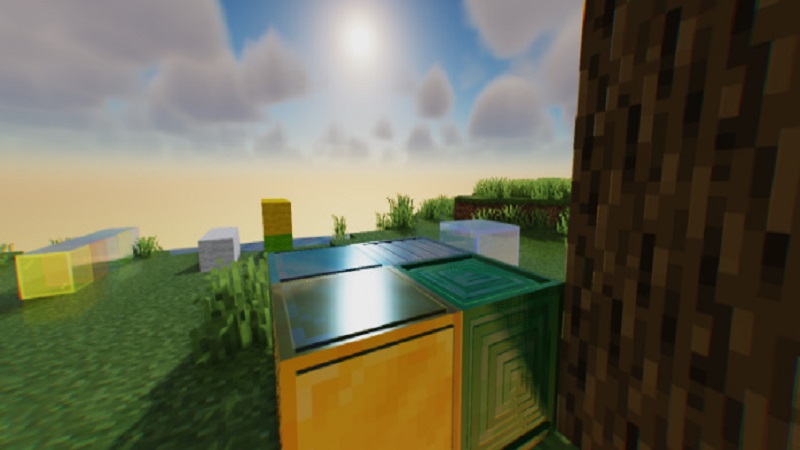
In Creative mode, shadows highlight material choices. Smooth blocks, glass, and layered builds react differently to light, giving creations more realism. Shadow quality and distance can be adjusted, allowing you to balance performance and visuals based on how you play or record.
Best Settings for Screenshots & Videos
To get the best results from Open4Es Shader, adjusting settings makes a big difference.
For screenshots, slightly higher shadow quality and longer shadow distance help add depth and drama. Enabling cinematic features like bloom or Depth of Field works well for still images, especially when showcasing builds or landscapes. Sunrise and sunset are ideal times to capture scenes, as low-angle light creates longer, more expressive shadows.
For videos, stability matters more than maximum visual quality. Moderate shadow settings usually look better in motion and help maintain smooth frame rates. Keeping render distance reasonable also prevents sudden performance drops.
Many creators use two presets:
- One preset optimized for gameplay and recording
- One preset optimized for screenshots
This approach saves time and keeps performance consistent.
Using Open4Es Shader in Creative & Survival
Open4Es Shader enhances both Creative and Survival modes without changing how Minecraft works.
In Creative mode, builds benefit the most. Lighting behaves more realistically, making materials easier to evaluate and designs more visually appealing. Interiors feel warmer, and outdoor builds gain depth through shadows and ambient lighting. Builders can showcase their work without relying on heavy texture packs.
In Survival mode, the shader improves immersion and usability. Terrain becomes easier to read, caves feel more atmospheric, and bases look more alive as lighting changes throughout the day. Shadows add realism without making the game unfairly dark, which is important for long mobile sessions.
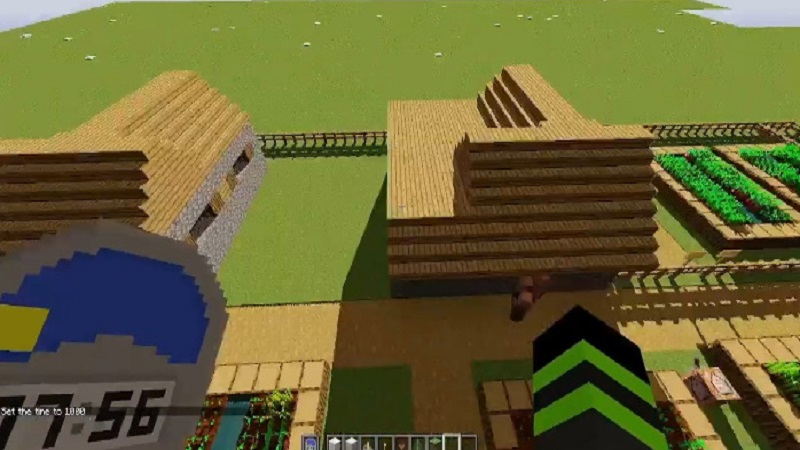
Open4Es works well with vanilla textures and lightweight resource packs. You don’t need a complex setup to see noticeable improvements.
Performance Tips for Recording
Recording on mobile requires careful performance management, and Open4Es Shader offers enough flexibility to make this practical.
Helpful tips include:
- Lower shadow distance slightly while recording
- Disable effects that are subtle in motion, such as heavy bloom
- Use Normal or Low profiles for longer sessions
- Monitor device temperature to avoid throttling
Testing your settings before long recordings helps maintain smooth footage and consistent quality.
Final Recommendation for Mobile Creators
Open4Es Shader is a strong choice for mobile Minecraft players who value visuals, especially builders, creators, and immersive survival players.
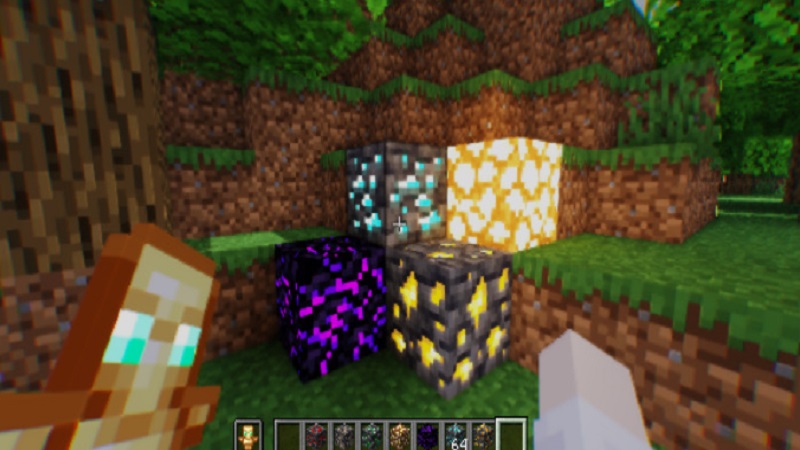
Its dynamic shadows add depth, mood, and realism that significantly improve how Minecraft looks on mobile screens. The shader focuses on balance—enhancing atmosphere while remaining flexible enough to run on a wide range of devices.
While it does not aim to replace high-end PC shaders, Open4Es Shader excels in its intended space. With thoughtful settings and realistic expectations, it allows you to create cinematic screenshots, smooth videos, and more immersive worlds than vanilla MCPE can offer.
If you play Minecraft on mobile and want better lighting without sacrificing performance, Open4Es Shader is a practical and rewarding upgrade.