AziFy Revive Shader – Realistic Lighting for Bedrock
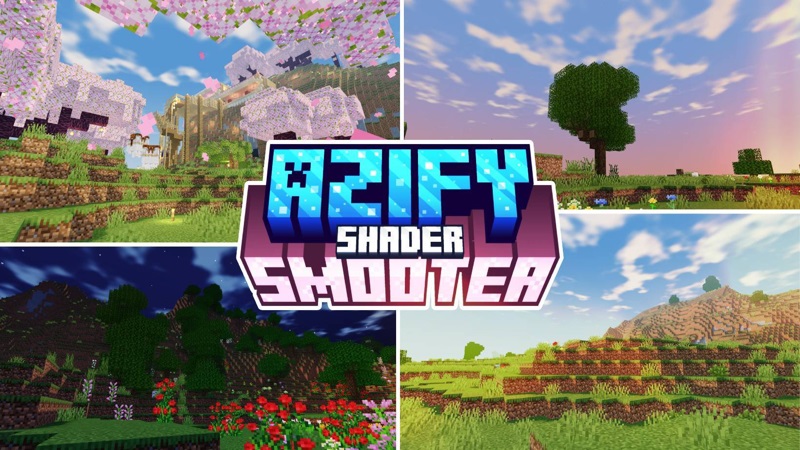
Bring your Minecraft Bedrock world to life with AziFy Revive Shader — a lightweight, performance-friendly visual upgrade designed to deliver realistic lighting, vivid colors, and natural reflections.
Created for MCPE players, it turns everyday builds into cinematic landscapes without lag or overheating, making every sunrise, shadow, and block feel alive.
Understanding Bedrock Shaders
In Minecraft: Bedrock Edition, shaders are powerful tools that change how light, color, and texture interact in-game. Unlike simple texture packs that alter designs, shaders redefine how the world is lit.
They control sunlight, water reflections, and shadow depth — the secret to realism on mobile and Windows 10.
Because Bedrock shaders must run efficiently on phones and tablets, they’re lighter than Java shaders. AziFy Revive Shader is built precisely for this balance, offering beautiful realism that performs smoothly even on 4 GB-RAM devices.
What Makes AziFy Revive Shader Special
AziFy Revive Shader was designed from the ground up for Minecraft Bedrock Edition.
It doesn’t just brighten visuals; it redefines the entire atmosphere:
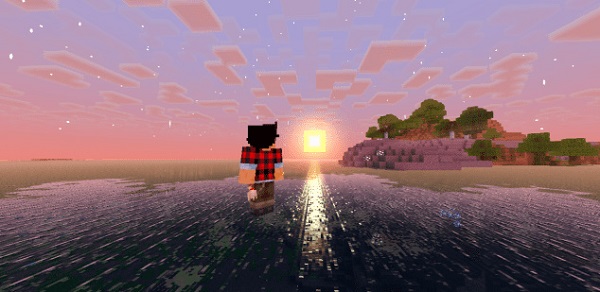
Dynamic Lighting & Shadows: Smooth day-night transitions create realistic brightness changes as the sun moves.
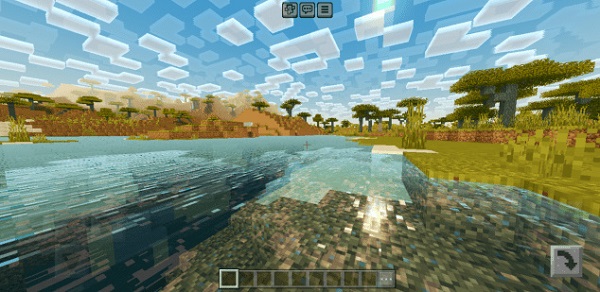
Natural Water Effects: Ripples, reflections, and gentle shoreline foam add believable detail.
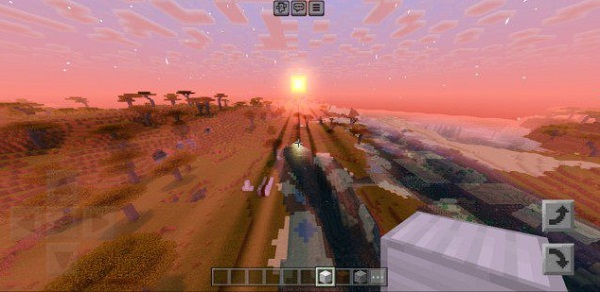
Vivid Skies & Clouds: Color-rich dawns and moving clouds bring depth to every biome.
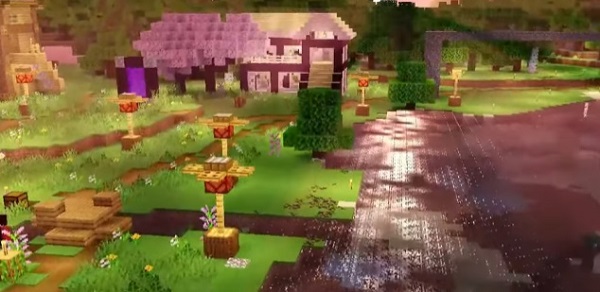
Subtle Bloom & Light Rays: Sunlight or torchlight gently glows, giving caves and builds cinematic warmth.
Foliage & Terrain Animation: Leaves sway, and terrain tones feel more natural without oversaturation.
All of this runs with stable performance — typically 30–45 FPS on mid-range phones — thanks to AziFy’s optimized rendering engine.
How to Install AziFy Revive Shader
Setting up the shader is quick and safe:
For MCPE (Mobile)
Download the AziFy Revive Shader (.mcpack) file from a trusted source.
Open it; Minecraft will import automatically.
Go to Settings → Global Resources → My Packs and activate the shader.
Restart Minecraft if needed.
For Windows 10
Move the downloaded file into your resource_packs folder.
Launch Minecraft → Settings → Resource Packs → enable AziFy Revive Shader.
Restart to apply changes.
Tip: Use only verified downloads to protect your game data.
Best Settings for Smooth Gameplay
To keep gameplay fluid and visuals stunning, try:
Render Distance: 8–12 chunks
Brightness: 50–70 %
Graphics: “Fancy” for mid-range devices; “Fast” for low-end phones
Battery Saver: Turn on during long play sessions
Texture Packs: Pair with 16×16 or 32×32 packs for balanced performance
Pro Tip: Visit your favorite build at sunset — AziFy’s lighting truly shines then.
Troubleshooting & Optimization Tips
If issues appear:
Low FPS? Reduce render distance.
No visual change? Ensure the shader is active under Global Resources.
Crashes? Re-import or clear background apps.
Overheating? Lower graphics or take short breaks.
For best results, keep Minecraft Bedrock and AziFy Revive Shader updated. Delete old versions before installing new ones to avoid conflicts.
Final Thoughts
AziFy Revive Shader delivers a perfect blend of beauty, stability, and accessibility. It lets MCPE players enjoy realistic lighting, reflective water, and gentle atmospheric depth — all without losing smooth performance.
If you’ve ever wanted your Minecraft world to feel cinematic yet run effortlessly, AziFy Revive Shader is your go-to choice.
Transform your Bedrock adventure today — brighter, smoother, and more alive than ever.